- Define specific purpose and end users – know your consumer
- create preliminary mock-ups before the planning meeting to help guide the conversation
- Design each page of the dashboard with a single focus(use actions/drill downs to move between layers of information). Never show too much of information. It will confuse end users.
- Prototypes – creating views/pages. Connecting to database instead of excel sheets. etc.,
- Demonstrate to your end users and stakeholders
- Incorporate feedback
- Publish
Category: Cognos Analytics
Cognos users and group list using Content manager
I used below query to get cognos user list and associated groups. I got this query for cognos version 10.2.2
If query doesn’t provide any data, change classid and mapdlocaleid values and try.
SELECT v_group.name AS group_name,

v_user.ldap_id AS user_name

, CLASSID

, MAPDLOCALEID
FROM dbo.cmreford1 AS v_group_user
JOIN (SELECT cmid user_id,
UPPER (NAME) ldap_id
FROM dbo.cmobjprops33) v_user
ON v_group_user.refcmid = v_user.user_id
JOIN (SELECT cmobjnames.cmid cmid,
UPPER(cmobjnames.NAME) name
, cmobjects.classid
, cmobjnames.mapdlocaleid
FROM dbo.cmobjects, dbo.cmobjnames
WHERE
cmobjects.classid IN (26, 54)
AND cmobjnames.mapdlocaleid = 92
AND
cmobjects.cmid = cmobjnames.cmid) v_group
ON v_group.cmid = v_group_user.cmid
order by 1,2
————————————————————————————————————————–
SELECT v_group.name AS group_name,
v_user.ldap_id AS user_name
FROM dbo.cmreford1 AS v_group_user
JOIN (SELECT cmid user_id,
UPPER (NAME) ldap_id
FROM dbo.cmobjprops33) v_user
ON v_group_user.refcmid = v_user.user_id
JOIN (SELECT cmobjnames.cmid cmid,
UPPER(cmobjnames.NAME) name
FROM dbo.cmobjects, dbo.cmobjnames
WHERE cmobjects.classid IN (26, 54)
AND cmobjnames.mapdlocaleid = 96
AND cmobjects.cmid = cmobjnames.cmid) v_group
ON v_group.cmid = v_group_user.cmid
order by 1,2
cognos drill through from a button/URL link
Had a situation where I need to develop a detail report for a dashboard based on the prompts selected in that dashboard.
Dashboard had multiple summary lists/crosstabs/charts
below are high level steps.
Solution:
1. develop a detail list report based on the same prompts.
2. At master report
- create a singleton (on the dashboard where you want to see the url)and say you assigned it to query – q_detail.
- Create a data item say “Detail data” and with value “click for detail data”
- now add this data item to the singleton you created.
- select the data item in the singletom and select drill-Through definitions.
- select required report and other options. At parameters click on edit sign and use
- “Pass parameter value” and select associated prompt name.
- click ok.
now when you run the summary report you should see a link “click for detail data”
Cognos Color codes
Below link gives all possibilities with respect to color codes.
IBM Cognos – Clear everything in cache
Report sometimes shows up old data. This can fixed by clearing the cache.
In Cognos Administration
- go to configuration and click on – ‘Query Service caching’
- On the right side, click on ‘Clear cache’
- you will get a command saying status – ‘Succeeded
below is the screenshot. 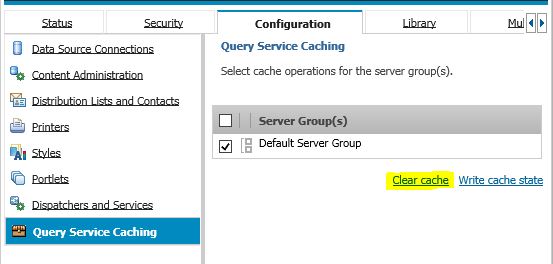
Recovering Cognos Framework Manager Models From The Content Store
In this blog post, I will describe the step-by-step recovery of a corrupted or misplaced IBM Cognos Framework Manager model. These steps will create an XML file, then run a report against the package of the lost Framework Manager model or project. This process may be used when the Framework Manager project directory was deleted or lost. It will only recover the model for selected package. Next, as you create a blank new project, the necessary files that are created with this process can be replaced, and using the CQEConfig.xml file, the lost or corrupted Framework Manager model can be retrieved.
This method will work for Cognos 8 and Cognos 10.
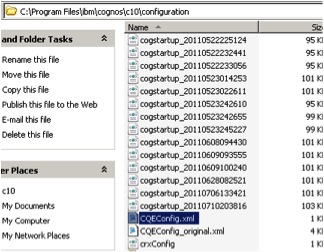
In the current Cognos environment, modify the CQEConfig.xml file as shown here:
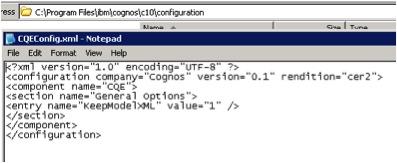
f the file does not exist in the location above, you can create an XML file with the following content:
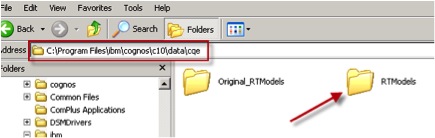
Stop the Cognos services and rename the “RTModels” directory to “Original_RTModels”, as shown here:
Now, restart the Cognos services from Cognos Configuration.
Launch Report Studio from Cognos Connection and create a new report using the package for which the model needs to be recovered.
As the report runs, verify that a new “RTModels” folder has been created, as shown. This folder should also contain an XML file, which needs to be used in the next few steps:
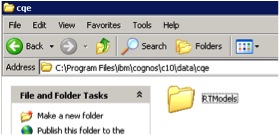
Remove the CQEConfig.xml file created in the first step.
Stop the Cognos services.
Now, move the newly created “RTModels” directory to another location (desktop).
Now, rename the “Original_RTModels” folder back to “RTModels” and re-start Cognos services.
Once these steps have been accomplished, in the metadata modeling tool, Framework Manager, create and save a new empty project.
Close this model.
Explore into the folder containing the newly created empty project and change the model.xml file to model.xml.origin.
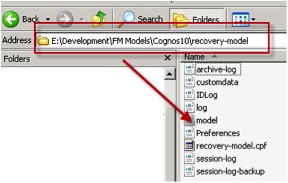
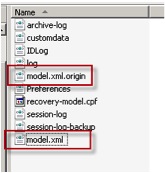
Copy the XML file created in the previous step into the Framework Manager project directory and rename it to model.xml (Note: the model.xml.origin will still exist).
This will enable opening the lost Framework Manager model.
**We can also use CM tools to get this information. Will provide steps when I get some time.
Tags:
Recovering Cognos Framework Manager Models From The Content Store
How to get lost Cognos Framework Manager.
How to Recover a Lost Cognos Framework Manager Model
How to recover a corrupted or lost Framework Manager model.
How to recover a Framework Manager model from the content store
Cognos Framework Manager xml file
Source of the article: http://www.performanceg2.com/recovering-framework-manager-from-content-store/
http://www-01.ibm.com/support/docview.wss?uid=swg21505488
 Data Engineering and BI BLOG