Snowflake: Get list of all DB and schemas

To get list of all Snowflake Databases:

show databases ;

To get list of all schemas in a database:

show schemas ; 

But issue with above is we cant get list of all schemas in the whole account or from all databases.

To get all schemas in an account, you can do this (note that it only reports on what the current role has privileges on):

show schemas in account;

If you want to filter the results, you can use the result_scan immediately after running the show, which is a metadata query. It may look something like this:

select "database_name" as DATABASE_NAME
"name" as SCHEMA_NAME
from table(result_scan(last_query_id()))
where SCHEMA_NAME not in ('INFORMATION_SCHEMA') -- optional filter(s)
;

Conos default sender email not working

When a user is sending out an email using cognos, it is always being sent using user’s email instead of default sender email.

add following setting on Cognos dispatchers

alwaysUseDefaultSender , set value to TRUE

You can use below article to get more detail steps:

How to set the default email sender to a specific value in Cognos Analytics 11.

https://www.ibm.com/support/pages/how-set-default-email-sender-specific-value-cognos-analytics-11

PH05363: WHEN A USER IS SENDING AN EMAIL OUT IT IS ALWAYS BEING SENT FROMTHE EMAIL ADDRESS SPECIFIED IN THE DEFAULT SENDER AREA.

https://www.ibm.com/support/pages/apar/PH05363

PH24943: DEFAULT EMAIL SENDER NOT SET WITH CA 11.1.6

https://www.ibm.com/support/pages/apar/PH24943

cognos content store not connecting to sql server

When trying to connect sql server database from cognos configuration content store getting following error:
[Content Manager database connection]
[ ERROR ] The database connection failed.
[ ERROR ] Content Manager is unable to connect to the content store. Verify that the database connection properties in the configuration tool are correct and that when you test the connection, the test is successful.

When you get this error:

First make sure you server can connect to SQL server by creating a ODBC connection and do a test. If successful then issue is with Cognos connecting to SQL Server.

Follow below steps:

Cognos Analytics connects to the content store via JDBC, not ODBC. These are completely different client interfaces so comparing ODBC to JDBC is not comparable.

It is important that you make sure that you are using the latest version of the SQL Server JDBC driver. It is recommended to use the 9.4 version of the JDBC driver as there are some changes with encryption defaults with the 10.2 JDBC driver that may break connections.

You can download the 9.4 driver here: https://go.microsoft.com/fwlink/?linkid=2183120

– Download the .zip file

– Extract the .zip file

– Copy the sqljdbc_9.4\enu\mssql-jdbc-9.4.1.jre8.jar file to your cognos_location\drivers folder

– Remove the old SQL Server JDBC driver so there are no conflicts

– Copy the sqljdbc_9.4\enu\auth\x86\mssql-jdbc_auth-9.4.1.x86.dll file to the cognos_location\bin folder. Remove any older sqljdbc_auth.dll file that was there previously

– Copy the sqljdbc_9.4\enu\auth\x64\mssql-jdbc_auth-9.4.1.x64.dll file to the cognos_location\bin64 location.

SQL Server 2016 uses TLS 1.2, so you will need to make sure that you configure Cognos to make a TLS 1.2 connection to your database. Please refer to the following TechNote:

https://www.ibm.com/support/pages/connection-sql-server-fails-when-server-configured-use-tls-12-or-connecting-sql-server-2016

Follow the steps under “To get the Content Store connection working”. Note: You will need to always launch the config using bin64\cogconfig.bat from this point onwards so it picks up the TLS 1.2 parameters.

Regenerate cryptographic keys in Cognos Analytics

If you Cognos service is not starting with following error, then your cryptographic keys got corrupted.

[Launching a JVM using ‘Maximum memory in MB’]
Successfully launched a test JVM with the memory setting of ‘16384’. Note that this does not guarantee that the IBM Cognos service will start and run successfully.
To see which JVM options are based on this setting, view ibmcognos_location/bin64/bootstrap_wlp_<OS>.xml and see your JVM documentation for an explanation of those options.
[Authentication Service]
[ ERROR ] The server did something wrong.
[ ERROR ] AAA-AUT-0016 The function call to ‘CAMFactory.initialize’ failed.
[ ERROR ] CAM-CRP-1095 Unable to find the encryption certificate with alias ‘encryption’ in the keystore ‘E:/cognos/analytics/configuration/certs\CAMKeystore’.
[‘MPDC’]
[ ERROR ] AAA-AUT-0016 The function call to ‘CAMFactory.initialize’ failed.
[ ERROR ] CAM-CRP-1095 Unable to find the encryption certificate with alias ‘encryption’ in the keystore ‘E:/cognos/analytics/configuration/certs\CAMKeystore’.

Follow the steps from the url: https://www.ibm.com/support/pages/node/286475 to regenarte the keys.

Tableau personal folders

Currently Tableau doesn’t have personal folders kind of structure. With below steps you could create a personal folders for your organization.

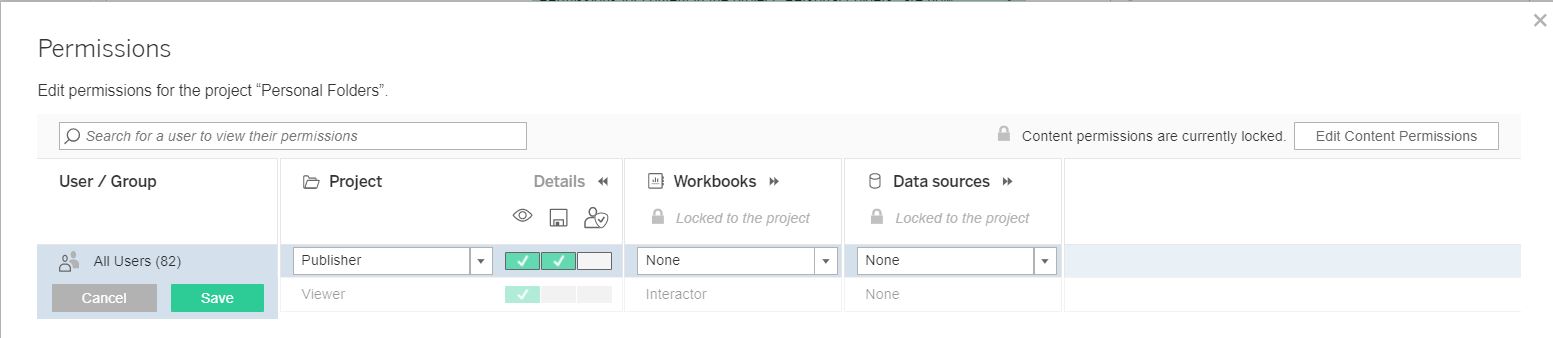
1. Create a new project – Personal folders
2. at permissions – For “All Users” set project permissions as – Publisher. Leave rest all to none
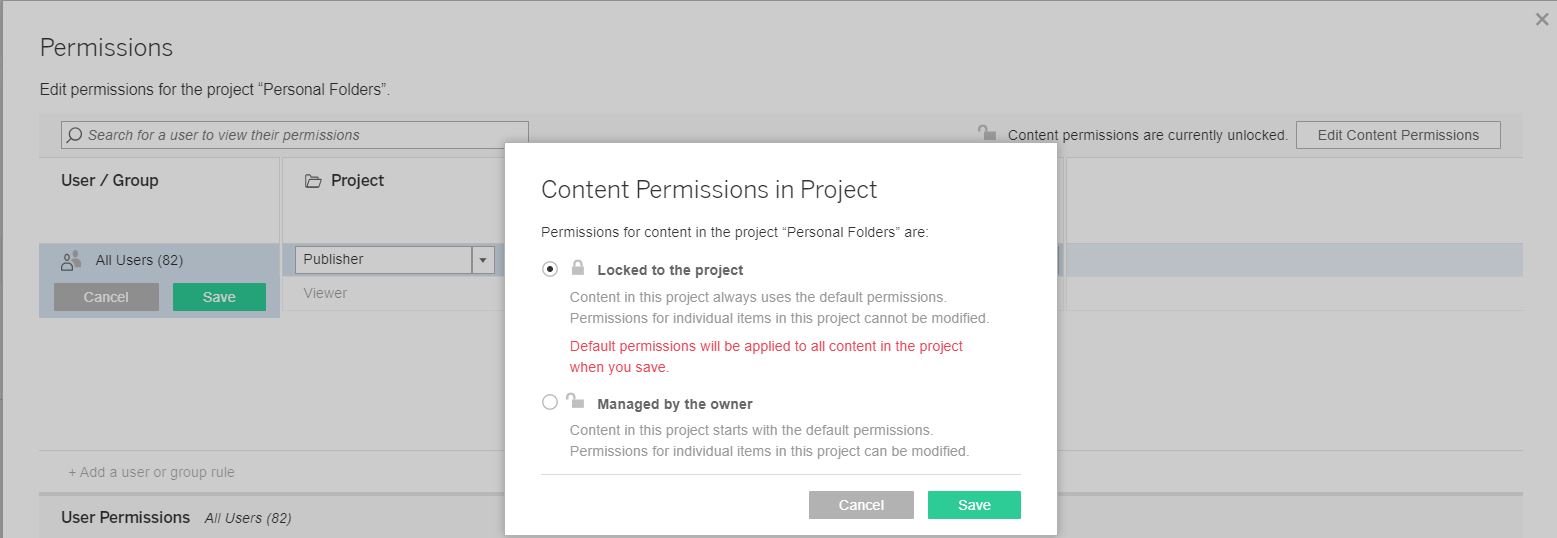
3. click on “Edit Content Permissions” and then select “Locked to the project”

personal folders are ready. Content is only visible to publishers and admins only. tableau personal folder_1tableau personal folder_2

Source:

Keywords:
How to create personal folders in tableau.


Schedule tableau pdf reports using powershell, tabcmd and windows task scheduler

Though using Tableau UI we can schedule pdf email but it doesn’t give us the flexibility in setting up page layout, scaling, sending email outside of tableau users, etc.,

I used below script to achieve this

Assumptions:
Tableau url: tableau.abc.com
Tableau workbook url: tableau.abc.com /#/site/sitename1/views/DashboardName_1/ViewName_1
Tableau logon user name: user_1 , password: Password_1
Email address to use for sending email: user_1@abc.com
Email recipients: user_2@abc.com; user_3@abc.com
Tableau tabcmd installed path: E:\Tableau\Command Line Utility\tabcmd.exe
Power shell installation path: C:\Windows\System32\WindowsPowerShell\v1.0\powershell.exe
Power shell script path: E:\Tableau\Command Line Utility\ps_tableau_script.ps1
Pdf output location: E:\TableaurRportOutput\DashboardPdf_1
Below is the power shell script.
Smtp server: smtpxy.abc.gov

Before writing power shell script make sure you are able to send email using command prompt.
You can schedule power script using windows scheduler.
Powershell script: save below code as .ps1 format.

try
{

$file = “E:\TableaurRportOutput\DashboardPdf_1″+ “_” + $(get-date -f yyyy-MM-dd) + “.pdf”

#login to tableau and export pdf to a location.
./tabcmd.exe login -s https:// tableau.abc.com -t sitename1-u user_1 -p Password_1 $ –no-prompt
#-h –no-prompt
#–timeout 5
./tabcmd export ” DashboardName_1/ViewName_1″ –fullpdf –pagelayout landscape –pagesize letter -f $file –no-prompt
./tabcmd logout

#sending email
$FromEmail = “user_1@abc.com”
[string[]]$ToEmail = @(“user_2@abc.com”,”user_3@abc.com”)
$smtpserver = ” smtpxy.abc.gov ”

$Subject=”PDF Dashboard Report”
$message=”
Good morning,
`n
Please see attached the Dashboard daily report.

send-mailmessage -from (“$FromEmail”) -to ($ToEmail) -subject “$Subject” -Attachment $file -body “$message ” -BodyAsHtml -smtpServer $smtpserver

}

#failure email
catch [Exception]
{
Write-Host (“Errorcount $errorcount”)
Write-Host (“Error: {0}” -f $_.Exception.Message)
$errorcount = $errorcount + 1
$message = $_.Exception.Message
if ( $errorcount -eq 1)
{
send-mailmessage -from (“$FromEmail”) -to ($FromEmail) -subject “$Subject failed” -body “$message” -smtpServer $smtpserver
}
Start-Sleep -s 600
}