Blog
‘python’ is not recognized as an internal or external command, operable program or batch file.
when trying to access python from command line- we might get an error when we use – ‘python’. Use ‘py’ instead of ‘python’
C:\Users\tekjedi>python
‘python’ is not recognized as an internal or external command,
operable program or batch file.
C:\Users\tekjedi>python
Python 3.1(v……] on win32
if you are still getting error then check “environment variables”. You need to add python installed folder path at environment variables.
if your python install path is : C:\Programs\Python\Python37-32 then go to control panel, systems–> Advanced system settings –> Advanced tab –> Environment variables –> System Variables –> Path edit –> at variable name enter your python installation path with “;” i.e. “;C:\Programs\Python\Python37-32;” . hit ok.
Key words for search:
python-is-not-recognized-as-an-internal-or-external-command
how to get last shotdown time of the server
In command prompt entre systeminfo
‘System boot time’ will tell you the last boot time of the server.
replace char(13) char(10)
char(13) is carriage return and char(10) is line feed. Different text editors/viewers will interpret it differently.
Use replace function to get all data in 1 line.
replace(replace(replace(column_name,char(13),’ ‘),char(10),’ ‘), char(9), ‘ ‘)
when copying data which have char(13), char(10) in it to text editor/excel- we notice data showing up in different rows. For this scenario we replace it by ‘ ‘ to get in 1 row.
select ‘a’+char(13)+’b’
select ‘a’+char(10)+’b’
SQL Carriage Returns or Tabs in SQL Server strings
Char(10) – New Line / Line Break
Char(13) – Carriage Return
Char(9) – Tab
cognos drill through from a button/URL link
Had a situation where I need to develop a detail report for a dashboard based on the prompts selected in that dashboard.
Dashboard had multiple summary lists/crosstabs/charts
below are high level steps.
Solution:
1. develop a detail list report based on the same prompts.
2. At master report
- create a singleton (on the dashboard where you want to see the url)and say you assigned it to query – q_detail.
- Create a data item say “Detail data” and with value “click for detail data”
- now add this data item to the singleton you created.
- select the data item in the singletom and select drill-Through definitions.
- select required report and other options. At parameters click on edit sign and use
- “Pass parameter value” and select associated prompt name.
- click ok.
now when you run the summary report you should see a link “click for detail data”
Convert multiple rows to single column
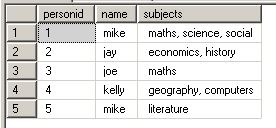
To convert multiple rows to single column.
At SQL Server database this can be achieved using STUFF function.
The STUFF function inserts a string into another string.
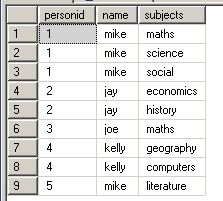
Run below queries to get an idea
—–Query Start————
create table #temp
(
personid int,
name varchar(10),
subjects varchar(10)
)
;
insert into #temp values(1, ‘mike’, ‘maths’)
insert into #temp values(1, ‘mike’, ‘science’)
insert into #temp values(1, ‘mike’, ‘social’)
insert into #temp values(2, ‘jay’, ‘economics’)
insert into #temp values(2, ‘jay’, ‘history’)
insert into #temp values(3, ‘joe’, ‘maths’)
insert into #temp values(4, ‘kelly’, ‘geography’)
insert into #temp values(4, ‘kelly’, ‘computers’)
insert into #temp values(5, ‘mike’, ‘literature’)
;
select * from #temp
;
SELECT personid, name,
subjects = STUFF(
(SELECT ‘, ‘ + b1.subjects FROM #temp b1 where b1.personid = b2.personid and b1.name = b2.name FOR XML PATH (”)), 1, 1, ”
)
FROM #temp b2 GROUP BY b2.personid, name
create table #temp

(

personid int,

name varchar(10),

subjects varchar(10)

)

;

insert into #temp values(1, 'mike', 'maths')

insert into #temp values(1, 'mike', 'science')

insert into #temp values(1, 'mike', 'social')

insert into #temp values(2, 'jay', 'economics')

insert into #temp values(2, 'jay', 'history')

insert into #temp values(3, 'joe', 'maths')

insert into #temp values(4, 'kelly', 'geography')

insert into #temp values(4, 'kelly', 'computers')

insert into #temp values(5, 'mike', 'literature')

;

select * from #temp
;
SELECT personid, name,
subjects = STUFF(
(SELECT ', ' + b1.subjects FROM #temp b1 where b1.personid = b2.personid and b1.name = b2.name FOR XML PATH ('')), 1, 1,''
)
FROM #temp b2 GROUP BY b2.personid, name
reference:
https://stackoverflow.com/questions/31211506/how-stuff-and-for-xml-path-work-in-sql-server
Cognos Color codes
Below link gives all possibilities with respect to color codes.
IBM Cognos – Clear everything in cache
Report sometimes shows up old data. This can fixed by clearing the cache.
In Cognos Administration
- go to configuration and click on – ‘Query Service caching’
- On the right side, click on ‘Clear cache’
- you will get a command saying status – ‘Succeeded
below is the screenshot. 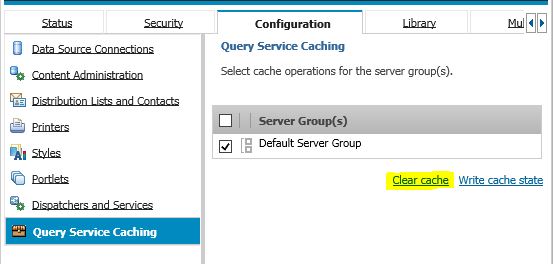
how to map network drive in windows
If you want to map to a network drive below is the syntax
\\(server name)\(drive like c or d or etc.,)$\(folder name)
example
lets us assume server to be – “Tekweirdo”
Drive to connect is- d
folder name- “Cognos”
below would be the syntax
\\Tekweirdo\d$\Cognos
Recovering Cognos Framework Manager Models From The Content Store
In this blog post, I will describe the step-by-step recovery of a corrupted or misplaced IBM Cognos Framework Manager model. These steps will create an XML file, then run a report against the package of the lost Framework Manager model or project. This process may be used when the Framework Manager project directory was deleted or lost. It will only recover the model for selected package. Next, as you create a blank new project, the necessary files that are created with this process can be replaced, and using the CQEConfig.xml file, the lost or corrupted Framework Manager model can be retrieved.
This method will work for Cognos 8 and Cognos 10.
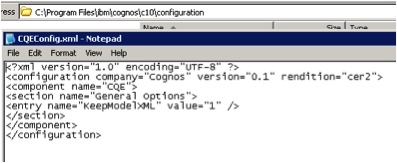
In the current Cognos environment, modify the CQEConfig.xml file as shown here:
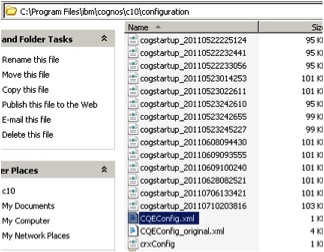
f the file does not exist in the location above, you can create an XML file with the following content:
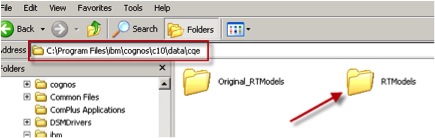
Stop the Cognos services and rename the “RTModels” directory to “Original_RTModels”, as shown here:
Now, restart the Cognos services from Cognos Configuration.
Launch Report Studio from Cognos Connection and create a new report using the package for which the model needs to be recovered.
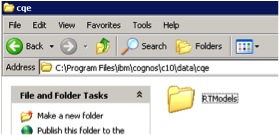
As the report runs, verify that a new “RTModels” folder has been created, as shown. This folder should also contain an XML file, which needs to be used in the next few steps:
Remove the CQEConfig.xml file created in the first step.
Stop the Cognos services.
Now, move the newly created “RTModels” directory to another location (desktop).
Now, rename the “Original_RTModels” folder back to “RTModels” and re-start Cognos services.
Once these steps have been accomplished, in the metadata modeling tool, Framework Manager, create and save a new empty project.
Close this model.
Explore into the folder containing the newly created empty project and change the model.xml file to model.xml.origin.
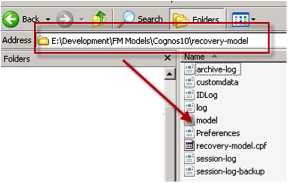
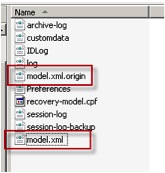
Copy the XML file created in the previous step into the Framework Manager project directory and rename it to model.xml (Note: the model.xml.origin will still exist).
This will enable opening the lost Framework Manager model.
**We can also use CM tools to get this information. Will provide steps when I get some time.
Tags:
Recovering Cognos Framework Manager Models From The Content Store
How to get lost Cognos Framework Manager.
How to Recover a Lost Cognos Framework Manager Model
How to recover a corrupted or lost Framework Manager model.
How to recover a Framework Manager model from the content store
Cognos Framework Manager xml file
Source of the article: http://www.performanceg2.com/recovering-framework-manager-from-content-store/
http://www-01.ibm.com/support/docview.wss?uid=swg21505488
 Data Engineering and BI BLOG